You can utilize the Host App to manage the flow of both dine-in guests and online orderers. The “Orders” tab in the Host iPad app helps your host/manager streamline communication with guests about their online order status and pick-up.
NOTE: To add this solution to your current package, please contact your Olo representative to discuss or click here to request a demo.
Skip to
- How it works
- Order Creation
- Message Notifications
- Additional Settings
- Order Sorting
- Icons: A red bell & timer
- Notifications (Push and Foreground)
- Filtering Orders
- Call-In Order Management
- Text-to-pay
How it works
Click the Menu to expand and find the Orders tab: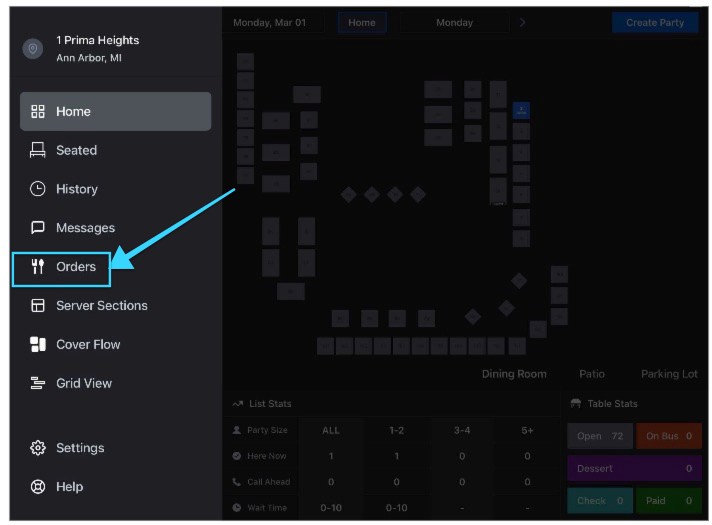
- Order Placed: When a guest submits an online order via Olo, it flows automatically to the Host App “Orders” tab (requires Olo integration to be enabled & setup). Orders can also be manually created via the Host App if not integrated with Olo.
- Order Created Text Notification: Guests receive a customizable “Order Created” text confirming their order has been received and any specific pick-up/hand-off instructions.
- Order Ready Text Notification: Guests receive a customizable "Order Ready" text confirming their order is ready and any specific pick-up/hand-off instructions. If integrated with Olo, this text notification can be triggered automatically using the Olo promise time (requires Olo integration to be enabled & setup). NOTE: A delay of up to 5 minutes may occur from the Olo promise time to when the SMS is sent.
- Notify Guests & Coordinate Hand-Off:
- Notify Button: When the order is ready, the host/manager can simply tap “Notify” to send a customizable text alert to the guest. NOTE: This will also apply a red bell notification badge to the guest's name in the Orders list so you quickly know which guests have been notified and for how long.
- Text Action Words: Text action words can also be configured to send an automated message. For example, asking the guest to respond with "HERE" (you could ask them to include parking spot number) when they arrive can trigger a message such as "We will bring your food out shortly".

- Manual Orders: The “Orders” tab also allows for manual entry of a guest name and phone number—with the ability to “Notify” guests when their order is ready. NOTE: You can select "Walk Up" for parties who walk in to place an order and this enables a different customizable text notification to be sent to the guest.
Tap on Create Order to manually create orders. Toggle Walk Up on to tag walk-up orders (optional).

Tap on Messaging to see the SMS history with the guest:

Additional Settings
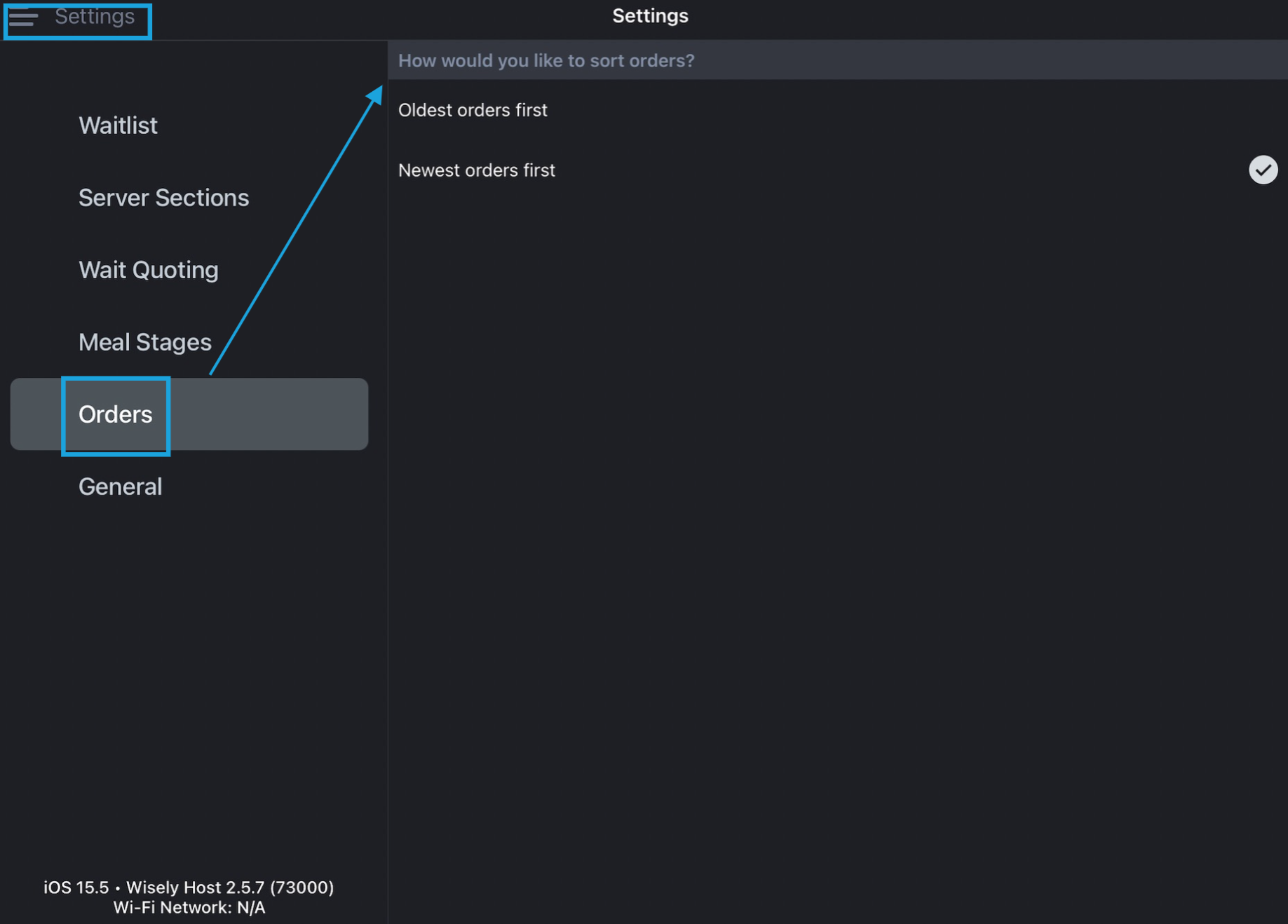
- Order Sorting: You can choose to sort by newest or oldest orders
- Click the Menu button > Settings > Orders
- Select your preferred sorting option.
-
Icons: You can easily identify order details with our icons.
- Red Bell & Timer
- The red bell indicates that a guest has been notified that their order is ready and how long ago.
- Once the guest's status is changed to picked up, they move to the 'Past Orders' section, and the red bell icon remains next to guest's name but it becomes transparent to avoid confusion with active orders

- Smart Tags
- Marketing Segments created with Smart Tags enabled will display the tag next to any guest who has it.
- Click here to learn more about Smart Tags
- Red Bell & Timer

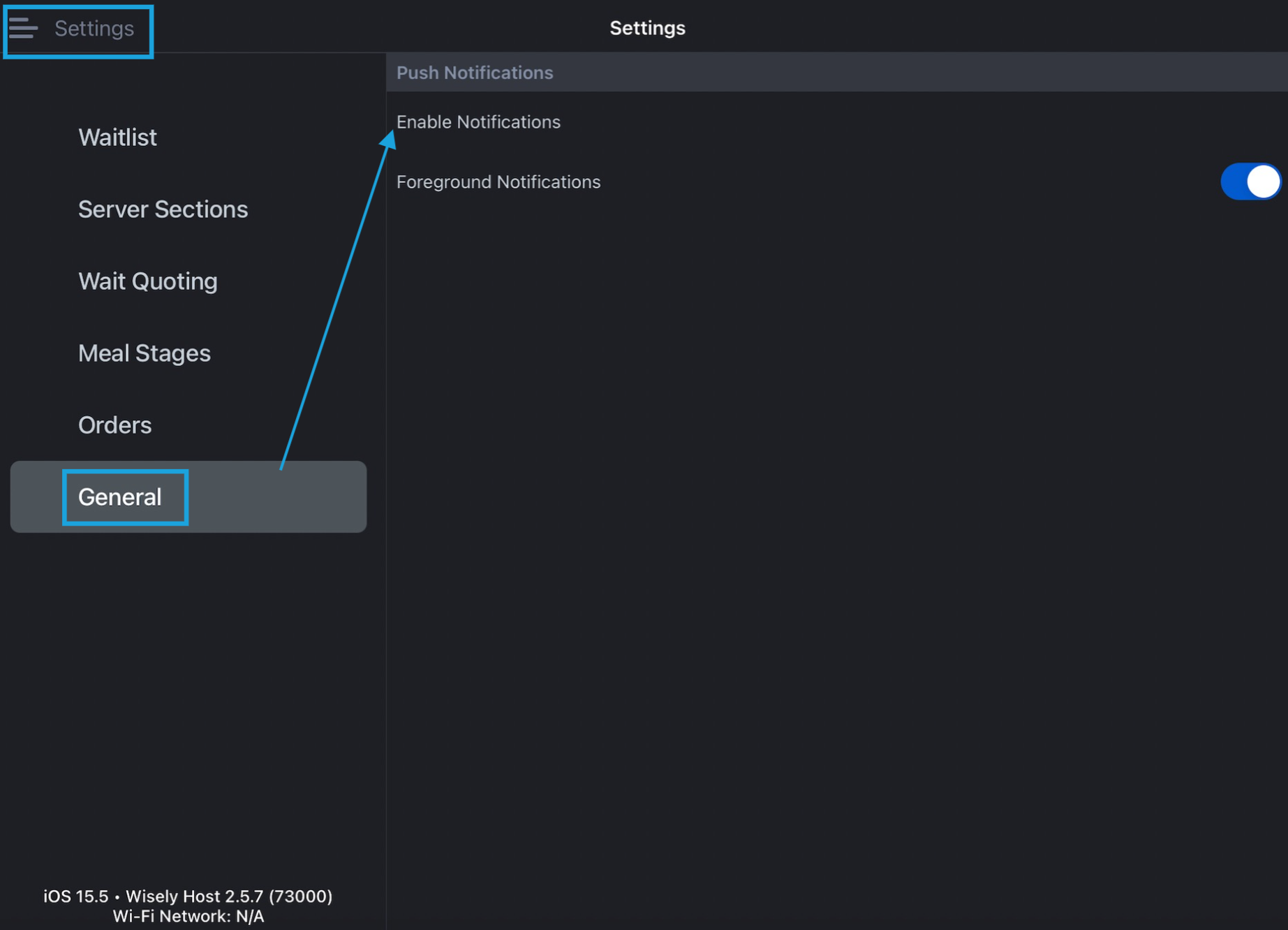
- Guest Arrival Push Notification: You can enable push notifications on the iPad for when guests utilize the text action word (such as "here"). This action word triggers an automated message to the guest and can also produce a push notification from the Host app on the iPad.
- Click the Menu button > Settings > General
- Click "Manage Notifications" to switch from Disabled to Enabled.
-
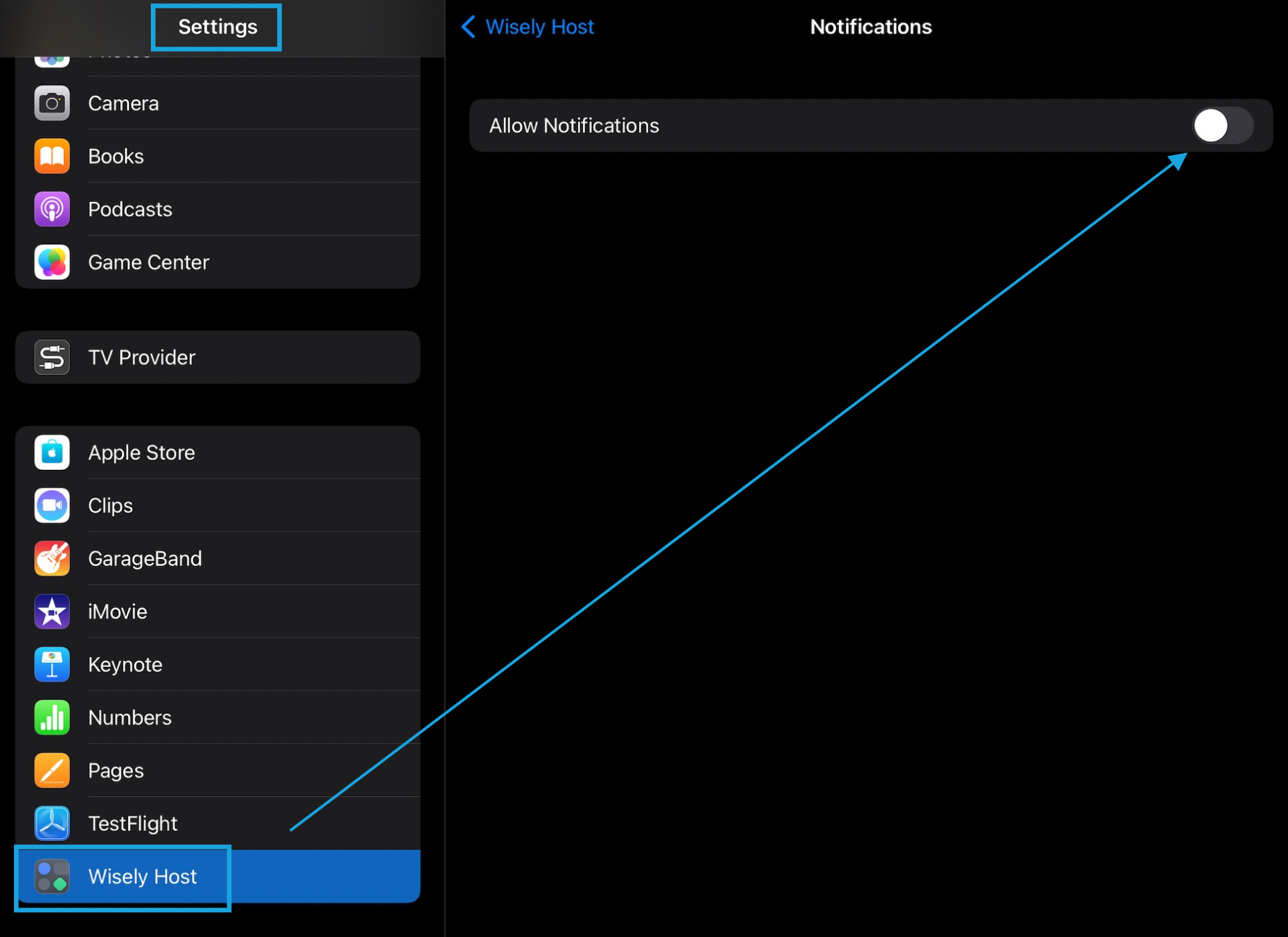
- Once Enabled, navigate to the iPad Settings (gear icon) > Wisely Host > toggle on "Allow Notifications". NOTE: You can configure notification preferences once this is enabled including alerts, sounds, badges.
- Push Notification Example:

- In the Host App Settings > General
- Toggle "Foreground Notifications" on (green) to switch from Disabled to Enabled.
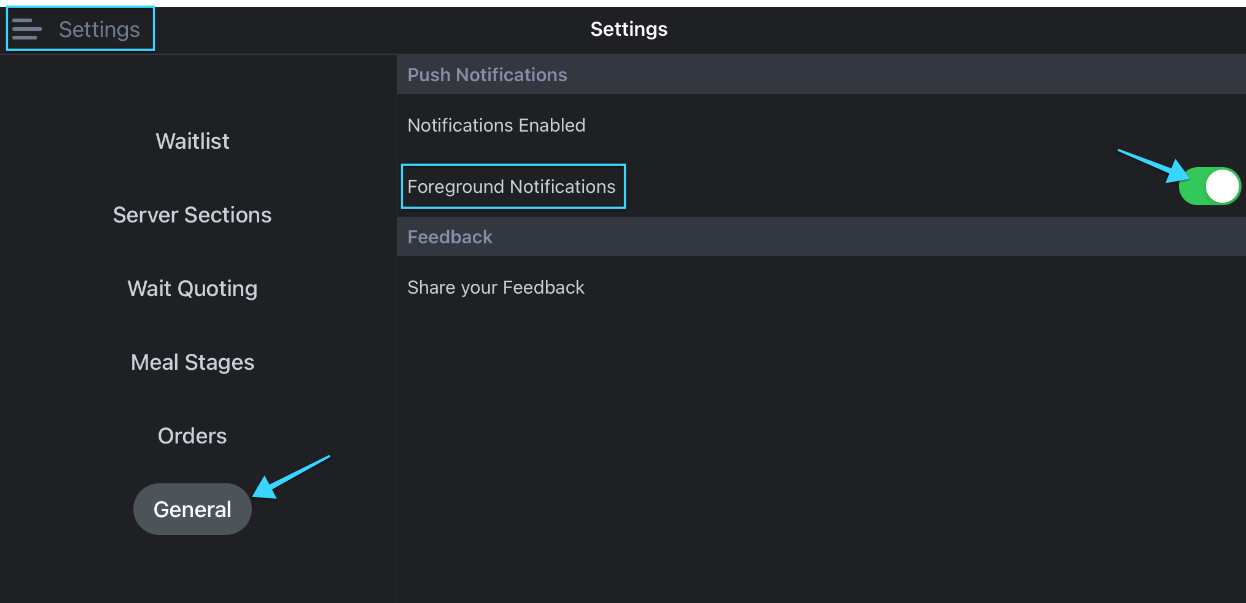
- Once Enabled, navigate to the iPad Settings (gear icon) > Wisely Host > toggle on "Allow Notifications". NOTE: You can configure notification preferences once this is enabled including alerts, sounds, badges.
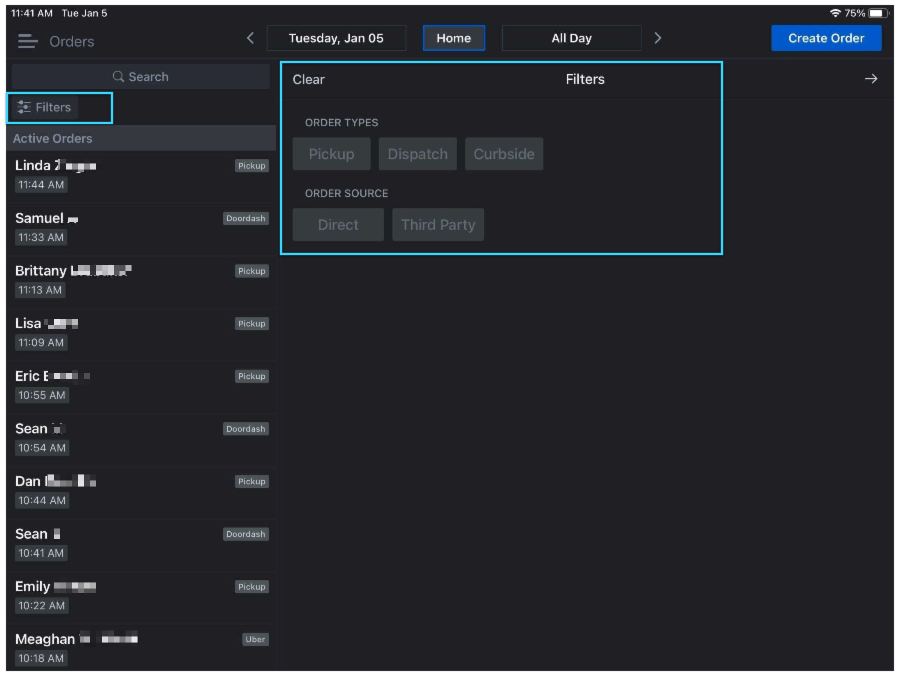
Filtering Orders: You can choose which order types you want to look at.
Click the Orders button> Filters > Click on the order types you want to see.
NOTE: You'll only be able to see filters for the types of orders you actually have for that day (active or past). For example, if you have don't have any curbside orders for the day, the curbside filter won't be present.
Call-In Order Management
We recognize that close to 30% of to-go orders are placed over the phone and are entered directly into the POS. In this case, guests can't receive the same SMS communication available to guests who order online.
Our Call-In Order Management is not directly integrated with Olo but is achievable with a special POS configuration to treat phone orders in a way that triggers the Order Management flow. To learn more and implement this feature, please contact our Support team.